Showing posts with label Atomic Learning. Show all posts

Saturday

Tool 4: Cool Google Tools

Google is more than a search engine. You can do much more than just find information with all the cool Google tools that are available.


Other than the search engine feature, probably the most well-known Google tool is Google Earth, a mash-up of photographs and maps. It is loaded on your SBISD laptop and other district computers, so you will not have to download it to use it. There are lots of uses for Google Earth.

There are Google images, Google videos, a Google news service and more!

For this Tool experience, the 11 Tools project managers would like for you to concentrate on Google Docs and Google Reader.

In another Tool further down the list, you will have the opportunity to explore Google Sites if you wish.

GOOGLE DOCS

Take this tour to learn more about the Docs and how to use them. The Common Craft video will also quickly explain the value of using them.


This video will give you some insight to using the forms included in Google Docs


Listen to educators who use Google Docs. They describe many ways Google Docs can be used for their professional needs AND for student products!


Atomic Learning contains some videos on creating and using Google Docs if you would like to have more information. (This will require the district-provided login and password.)

GOOGLE READER

The Common Craft guy Lee LeFever explains what a reader is. You will want to create one of these for the 11 Tools blogs you are following and any other online resources that update regularly.


You have probably seen the little orange RSS feed icon on many online resources. RSS or Really Simple Syndication is the means by which you can connect to online resources that consistently update their information, i.e. blogs, newspapers, news services, etc. If you want to learn more about RSS feeds you can start here.

Your Google Reader will make keeping up with new information really super simple! You will simply subscribe to your choices by adding the url (address) of the site to your reader. Take a short tour of Google Reader.

This video will show you how easy it is to set up your Reader and add blogs and other resources.


For your Tool #4 Post in you blog:

1. Create one document in Google Docs and share it with at least one other person in your PLN. It could a team member, a department colleague, or another teacher with whom you plan a collaboration. It could even be a family member---maybe you are planning a reunion or trip!
2. Set up your Google reader and subscribe to at least five 11 Tools blogs that you will be following. You are welcome to add other subscriptions that you want to follow. Maybe you have hobbies or other interests that you would like to follow.
3. Briefly discuss how you think these 2 Google tools will aid you in your particular classroom or benefit your students in their learning process.

Note:
Please be sure you include Tool # 4 in your post title.
Please hot link any online resources you include in your post.


Images:
Google icon - screenshot created by VWB
Google Earth - screenshot created by VWB
Google Reader - screenshot created by VWB

Tool 6: Wikis

You have used a wiki if you have ever been to Wikipedia, the best know wiki on the web!
It is a webpage with special formatting that allows you to collaborate with others while sharing and storing information. You may have already used the SBISD 21st Century Learner Wiki on some of the other assignments and not realized you were in a wiki! Maybe you have had occasion to use the SBISD Curriculum Wiki for other technology learning adventures?

Here is a CommonCraft video that explains what a wiki is.


Oftentimes, you will encounter wikis on the web that look very informal, seem outdated and are abandoned. That it because they were originally meant to be temporary working spaces.

But as with many things on the web, wikis have become more "permanent!" In education, they are very useful for groups of teachers sharing and storing information and great places for students to work together, whether they are across the classroom, the district, the country or the world! Take a look here for classroom ideas for wikis.

Look on the side bar of this blog to see a list of wikis that will show you how wikis can be used. You will notice that there are several wiki sources available for you to use. PBWorks (formerly known as PBWiki) and Wikispaces. They both have free wikis for k-12 audiences and each has it own stong points. Check them out!

Goggle also has a wiki piece called Google Sites.
See if there would be any advantages to using this resource over the other free wiki sources mentioned above.

Here are several tutorials from Atomic Learning that will help you with ideas for a wiki and how to set one up.

For your Tool #6 Assignment:

IN YOUR BLOG post, discuss how students might use wikis to aid in their learning. Did any of the sample wikis you viewed give you any particular ideas for using a wiki in your classroom for students. How about for and your team or department?

Congratulations! You are more than half-way to filling up your toolbox!

Tool 11: Digital Citizenship

Digital citizenship has become an essential ingredient in the learning process of 21st century learners. Just like they are taught to "stop, drop, and roll" at the annual visit from the local fire department or learn the meaning behind the Bill of Rights to the Constitution, learners needing to know how to operate in the digital world is just as important...and a role in which the school must participate. The ages of the learners will determine the information needed and how to provide appropriate digital world experiences. Providing a rich (and safe) learning environment in the digital world is just as important as it is on the bricks and mortar side!

SBISD Educational Technology has information about digital citizenship for you to use. A list of resources can be found here in grade level categories. Information from BrainPop is included.

Atomic Learning has some tutorials that will help you formulate thoughts about what digital citizenship(75096) and technology literacy (75097) mean and encompass. They are found under 21st Century Skills where you may want to choose to look at some other short tutorials.

Some other resources that will give background and ideas on how to present the topic include:
1. One approach to digital citizenship resides at the Digiteen Digital Citizenship Wiki. Delve into the topics in the left margin. These topic titles come from the book 'Digital Citizenship in Schools' by Mike Ribble and Gerald Bailey.

2. Cool Cat Teacher summarizes much about digital citizenship.

3. Another teacher "reflects" on digital literacy.

4. Here is a Ning with resources for educators on digital citizenship.

5. The ISTE standards (NETS-S [for students]) talk about digital citizenship. And the NETS-T for teachers give a little more detail about digital citizenship.

6. I-Safe factsheet from TxSSC (Texas School Safety Center). Check out the TxSSC for many more resources including the link to TEA's Internet safety page.


For your Tool #11 assignment:

In YOUR blog post, discuss at least three things you would want to make sure your students understand about being good digital citizens. Explain briefly how you would "teach" the idea of digital citizenship to your students.


You have done it - your toolbox should be full!
Go here to complete the After 11 Tools Reflections

Credits:
Photo mosaic - photos from
LIS Bond Tech Collection - sign from Sign Generators

After 11 Tools: Reflections

Congratulations on filling up your toolbox with lots of great learning resources to use in your transformed 21st century classroom!

For your final 11 Tools post, answer these questions:

1. What are your favorite tools you now have in your personal technology toolbox? Briefly describe a particular activity that you will plan for your students using at least one of these new tools.
2. How have you transfomed your thinking about the learning that will take place in your classroom?
3. Were there any unexpected outcomes from this program that surprised you?

To finish up your credit:
Atomic Learning,which you have used for help in some of the "Tools", is a great resource for training in 21st Century Literacy Skills and can help you move forward with your understanding of 21st Century Literacy. It has numerous 21st century projects and skills learning opportunities.

To get yourself started, take the assigned self-assessment on 21st Century Skills. This assesment covers a broad variety of topics and skills that are necessary for 21st century literacy. It covers topics not included in 11 Tools and may challenge you. YOUR SCORE IS NOT IMPORTANT. For 11 Tools credit, you ONLY need to complete the ASSESSMENT - NOT the Pathway.
Log into Atomic Learning. You already have a subscription. You do not have pay anything! If you do not remember how to sign in, contact karen.justl@springbranchisd.com for the sign in information.

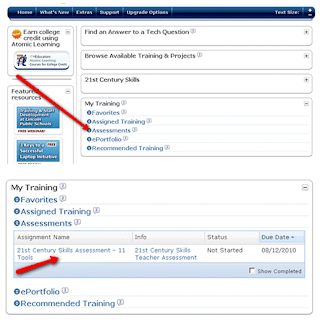
Once logged in, expand My Training to view Assessments.

Expand Assessments to view the 21st Century Skills Assessment – 11 Tools.
The assessment takes about 15 minutes. You can stop and resume if you are interrupted.
Upon completion, you will receive feedback on your areas of strength as well as a certificate. Additionally, Atomic Learning will develop a training pathway for you to strengthen areas of weakness and help you continue your learning. That pathway will appear in the Assigned Training section of your profile in Atomic Learning for you to return to and complete as you have time. Remember you can complete Atomic Learning trainings for Spring Branch professional development credit.
You’ll be happy to see the progress you’ve made on your path to 21st Century Literacy! !